
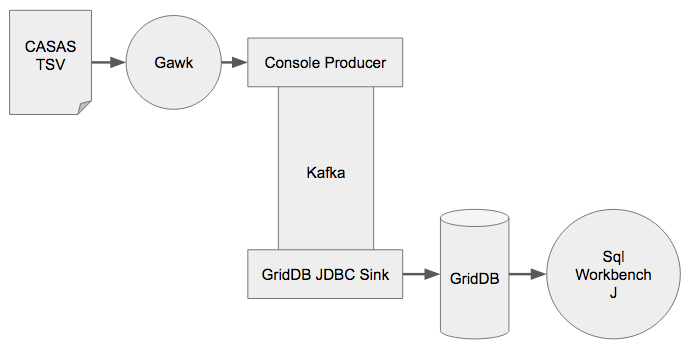
In this tutorial we feed the CASAS Dataset through Kafka and into GridDB with a Kafka Connect Sink that uses GridDB’s new JDBC interface.
The raw TSV data will be converted into JSON with Gawk and then fed into Kafka with a Console Producer. Then the GridDB JDBC Sink will read the data and write it to GridDB. Finally, we’ll inspect the data with SQLWorkbench/J.
Setup Kafka
Kafka is a data streaming platform with many different possible inputs and outputs that are easy to create. For this tutorial we’ll use a Kafka Console Producer to put data into Kafka which will be then consumed by Kafka Connect Sink that we are going write.
We are going to follow the Kafka Qucikstart. Kafka can be downloaded from their downloads page, we’re using version 2.12-2.5.0. You will also need to have a Java 1.8 development environment installed on your system. After downloading, we simply untar and start the Zookeeper and Kafka Servers.
$ tar xzvf kafka_2.12-2.5.0.tgz
$ cd kafka_2.12-2.5.0
$ bin/zookeeper-server-start.sh config/zookeeper.properties
$ bin/kafka-server-start.sh config/server.properties
As Zookeeper and Kafka are not daemons by default, have multiple terminals handy that wont terminate (or use screen) if you have network issues.
Data Set
CASAS is research group based out of the Washington State University that has a large sensor dataset. The data was collected from a variety of in-home sensors while volunteers performed their normal daily routines. We are going to use this dataset in a series of tutorials to demonstrate how to use GridDB to ingest, analyze, and visualize data.
The data looks like this:
2012-07-18 12:54:45.126257	D001	Ignore		Ignore		CLOSE	Control4-Door
2012-07-18 12:54:45.196564	D002	OutsideDoor	FrontDoor	OPEN	Control4-Door
2012-07-18 12:54:45.247825	T102	Ignore		FrontDoorTemp	78	Control4-Temperature
2012-07-18 12:54:45.302398	BATP102	Ignore		Ignore		85	Control4-BatteryPercent
2012-07-18 12:54:45.399416	T103	Ignore		BathroomTemp	25	Control4-Temperature
2012-07-18 12:54:45.472391	BATP103	Ignore		Ignore		82	Control4-BatteryPercent
2012-07-18 12:54:45.606580	T101	Ignore		Ignore		31	Control4-Temperature
2012-07-18 12:54:45.682577	MA016	Kitchen		Kitchen		OFF	Control4-MotionArea
2012-07-18 12:54:45.723461	D003	Bathroom	BathroomDoor	OPEN	Control4-Door
2012-07-18 12:54:45.767498	M009	Bedroom		Bedroom		ON	Control4-Motion
The fields of the TSV file are:
To put the CASAS data into Kafka, we’ll use a Gawk (a great text processing tool) to convert the TSV data to JSON that will be then fed into the Kafka Console Producer. If the sensor data was live, it would likely be fed into Kafka via MQTT or an HTTP endpoint.
Here is the simple shell script (casas_convert.sh) takes the CASAS location ID as an argument and uses Gawk to convert the CSV to JSON which is output on stdout looks like this:
#!/bin/bash

cat  ${1}/${1}.rawdata.txt | gawk  '{ printf "{"datetime" : "%s %s",  "sensor" : "%s", "translate01": "%s",  "translate02": "%s", "message":"%s", "sensoractivity": "%s", "location": "'$1'"   }n", $1, $2, $3, $4, $5, $6, $7 }'
Then we can ingest it with Kafka Console Producer:
for loc in `ls`; do
   ./casas_covert.sh $loc | /path/to/kafka/bin/kafka-console-producer.sh  --bootstrap-server localhost:9092 --topic casas
done
Coding the GridDB Sink
Two files make up the GridDB JDBC Sink, the first is GridDBSinkConnector.java which primarily handles reading the configuration file and creating the properties that will be used by the second file, GridDBSinkTask.java.
GridDBSinkConnector.java:
    public static final String JDBCURL_CONFIG = "jdbcurl";
    public static final String USER_CONFIG = "user";
    public static final String PASSWORD_CONFIG = "password";
    private static final ConfigDef CONFIG_DEF = new ConfigDef()
    .define(JDBCURL_CONFIG, Type.STRING, Importance.HIGH, "GridDB JDBC URL")
    .define(USER_CONFIG, Type.STRING, Importance.HIGH, "GridDB Username")
    .define(PASSWORD_CONFIG, Type.STRING, Importance.HIGH, "GridDB Password");

    String jdbcurl, user, password;

    @Override
    public void start(Map props) {
        jdbcurl = props.get(JDBCURL_CONFIG);
        user = props.get(USER_CONFIG);
        password = props.get(PASSWORD_CONFIG);
        System.out.println("Connector starting");
    }

    @Override
    public List> taskConfigs(int maxTasks) {
        ArrayList> configs = new ArrayList<>();
        for (int i = 0; i < maxTasks; i++) {
            Map config = new HashMap<>();
            if (jdbcurl != null)
                config.put(JDBCURL_CONFIG, jdbcurl);
            if (user != null)
                config.put(USER_CONFIG, user);
            if (password != null)
                config.put(PASSWORD_CONFIG, password);
            configs.add(config);
        }

        return configs;
    }
GridDBSinkTask.java is more interesting, first the start() method connects to JDBC from the configuration properties that was created by GridDBSinkConnector
    @Override public void start(Map props) {
        System.out.println("Starting Task....");
        Properties gsprops = new Properties();
        gsprops.setProperty("applicationName", "GRIDDB_KAFKA");
        gsprops.setProperty("user", props.get(GridDBSinkConnector.USER_CONFIG));
        gsprops.setProperty("password", props.get(GridDBSinkConnector.PASSWORD_CONFIG));

        fmt = new SimpleDateFormat("yyyy-MM-dd hh:mm:ss.SSS");

        try {
            con = DriverManager.getConnection(props.get(GridDBSinkConnector.JDBCURL_CONFIG) , gsprops);
        } catch (Exception ex) {
            System.out.println("Failed to connec to jdbcn" + ex);
        }
    }
The put() method actually writes all data in the subscribed Kafka topic to GridDB using a JDBC prepared statement. One important thing to note is that your prepared statement must be closed in the exception handler, otherwise future prepared statements wont execute.
    @Override public void put(Collection sinkRecords) {
        boolean first = true;
        System.out.println("Processing "+ sinkRecords.size() + " records...");

        try {
            Statement stmt = con.createStatement();
            PreparedStatement  pstmt = null;
            for (SinkRecord record : sinkRecords) {
                try {
                    HashMap map = (HashMap)record.value();
                    stmt.executeUpdate("CREATE TABLE IF NOT EXISTS " + map.get("location")+"_"+map.get("sensor") + " ( dt timestamp primary key, sensor text, translate01 text, translate02 text, message text, sensoractivity text)");
                    pstmt = con.prepareStatement("INSERT OR UPDATE INTO "+map.get("location")+"_"+map.get("sensor")+" VALUES (?, ?, ?, ?, ?, ?)");
                    pstmt.setTimestamp(1, new Timestamp(fmt.parse((String)map.get("datetime")).getTime()));
                    pstmt.setString(2, (String)map.get("sensor"));
                    pstmt.setString(3, (String)map.get("translate01"));
                    pstmt.setString(4, (String)map.get("translate02"));
                    pstmt.setString(5, (String)map.get("message"));
                    pstmt.setString(6, (String)map.get("sensoraction"));
                    pstmt.execute();

                    if(first) {
                        System.out.println("Wrote "+map);
                        first=false;
                    }
                } catch (Exception e) {
                    pstmt.close();
                    System.out.println("Failed to write "+map);
                }
            }
        } catch (Exception e) {
            e.printStackTrace();
        }
    }
We use Gradle to build the Jar:
$ ./gradlew jar
:compileJava
:processResources
:classes
:jar

BUILD SUCCESSFUL
Running the GridDB Sink
We will assume that you already have GridDB 4.5 CE installed and running the GridDB JDBC Jar built. We will copy GridDB JDBC jar and the GridDB Sink Jar to the Kafka Libs folder.
$ cp /path/to/griddb-jdbc-sink/build/libs/griddb-jdbc-sink.jar /path/to/kafka/libs
$ cp /path/to/griddb-jdbc/bin/griddb-jdbc.jar /path/to/kafka/libs
A configuration file is required for the Sink which defines the Sink Class, the topics it subscribes too as well as any configuration properties that the Sink itself requires.
name=griddb-sink
connector.class=net.griddb.connect.griddb.GridDBSinkConnector
tasks.max=1
topics=casas
schemas.enable=true
jdbcurl=jdbc:gs://239.0.0.1:41999/defaultCluster/public
user=admin
password=admin
database=public
You will also need to edit configs/connect-standalone.properties, changing key.converter.schemas.enable and
value.converter.schemas.enable to false.
Now we can start the Sink and data will start being ingested if the above console-producer has been run.
$ cd path/to/kafka
$ ./bin/connect-standalone.sh config/connect-standalone.properties config/griddb-sink.properties
[2020-08-07 17:02:38,802] INFO Kafka Connect standalone worker initializing ... (org.apache.kafka.connect.cli.ConnectStandalone:69)
[2020-08-07 17:53:02,117] INFO Kafka version: 2.5.0 (org.apache.kafka.common.utils.AppInfoParser:117)
[2020-08-07 17:53:02,117] INFO Kafka commitId: 66563e712b0b9f84 (org.apache.kafka.common.utils.AppInfoParser:118)
[2020-08-07 17:53:02,117] INFO Kafka startTimeMs: 1596819182117 (org.apache.kafka.common.utils.AppInfoParser:119)
[2020-08-07 17:53:02,124] INFO Created connector griddb-sink (org.apache.kafka.connect.cli.ConnectStandalone:112)
[2020-08-07 17:53:02,125] INFO [Consumer clientId=connector-consumer-griddb-sink-0, groupId=connect-griddb-sink] Subscribed to topic(s): casas (org.apache.kafka.clients.consumer.KafkaConsumer:974)
Starting Task....
[2020-08-07 17:53:05,901] INFO [Consumer clientId=connector-consumer-griddb-sink-0, groupId=connect-griddb-sink] Adding newly assigned partitions: casas-0 (org.apache.kafka.clients.consumer.internals.ConsumerCoordinator:273)
[2020-08-07 17:53:05,914] INFO [Consumer clientId=connector-consumer-griddb-sink-0, groupId=connect-griddb-sink] Setting offset for partition casas-0 to the committed offset FetchPosition{offset=108465, offsetEpoch=Optional.empty, currentLeader=LeaderAndEpoch{leader=Optional[localhost:9092 (id: 0 rack: null)], epoch=0}} (org.apache.kafka.clients.consumer.internals.ConsumerCoordinator:792)
Processing 500 records...
Wrote {datetime=2011-06-29 21:02:50.709770, translate01=Bathroom, sensoractivity=Control4-MotionArea, translate02=Bathroom, sensor=MA013, location=csh102, message=OFF}
Processing 500 records...
Wrote {datetime=2011-06-30 06:29:24.054707, translate01=Ignore, sensoractivity=Control4-LightSensor, translate02=Ignore, sensor=LS006, location=csh102, message=9}
Processing 500 records...
Wrote {datetime=2011-06-30 08:29:32.667029, translate01=Kitchen, sensoractivity=Control4-Motion, translate02=Kitchen, sensor=M008, location=csh102, message=ON}
Processing 500 records...
Wrote {datetime=2011-06-30 08:55:23.796199, translate01=Bathroom, sensoractivity=Control4-MotionArea, translate02=Bathroom, sensor=MA013, location=csh102, message=OFF}
Processing 500 records...
...
Inspecting the Data
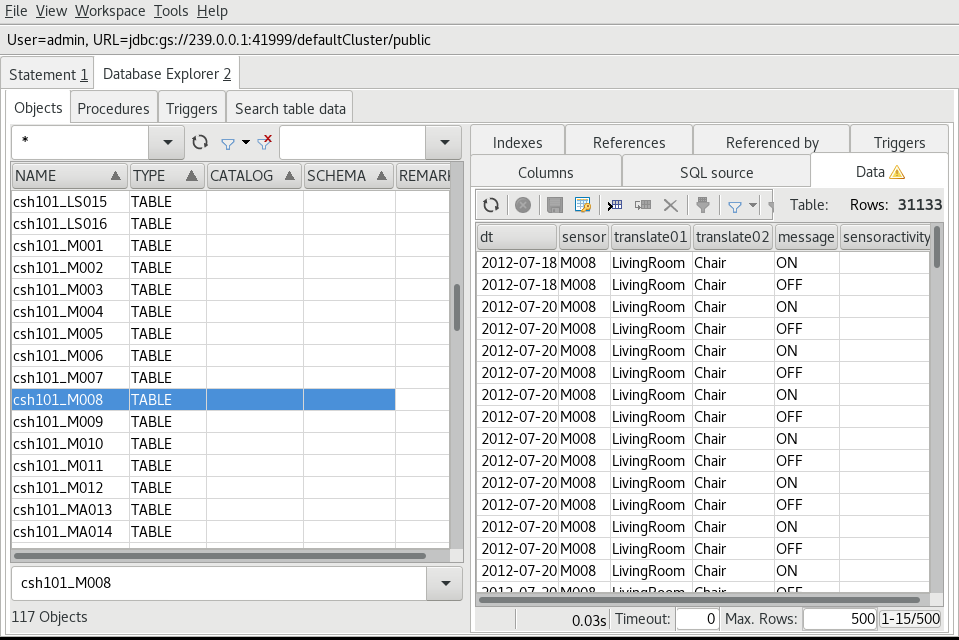
In a previous blog post, we showed how to use SQLWorkbench/J to see data in GridDB so we’re going to use it here to have a look at the data.
After a successful connection to the database, select the Tools->Show Database Explorer menu item or press Ctrl-d and a list of tables in GridDB will be shown. Selecting a table will allow you to see it’s data by selecting the Data tab on the right as shown here.
You can download the source for the GridDB JDBC Sink and Gawk Script TODO-here. Also, please be sure to check back to see how we analyze and visualize the CASAS dataset using GridDB’s JDBC interface in future tutorials.
If you have any questions about the blog, please create a Stack Overflow post here https://stackoverflow.com/questions/ask?tags=griddb .
Make sure that you use the “griddb” tag so our engineers can quickly reply to your questions.